ip
User Guide
Introduction
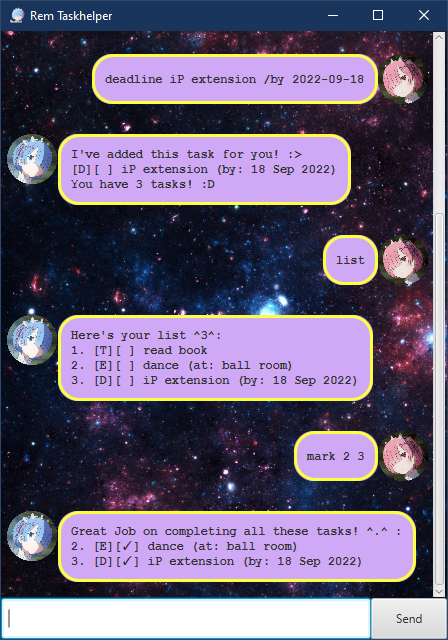
Inspired by Rem from Re:Zero, here is a comprehensive user guide to show how you can use your personal assistant, Rem Taskhelper, to add tasks to your personal checklist. Classify your tasks into todo, deadline and event tasks, and Rem Taskhelper will help you keep track of them!
Table of Contents
Getting Started
- Ensure that you have Java 11 or above installed in your Computer.
- Download the latest
duke.jarfrom here. - Move the file into your desired folder to run it from.
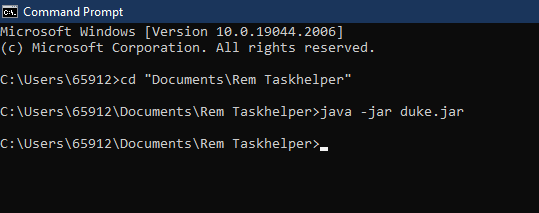
- Open up your command prompt/terminal and navigate to the folder containing the duke.jar file.
- Run the file by typing in the command
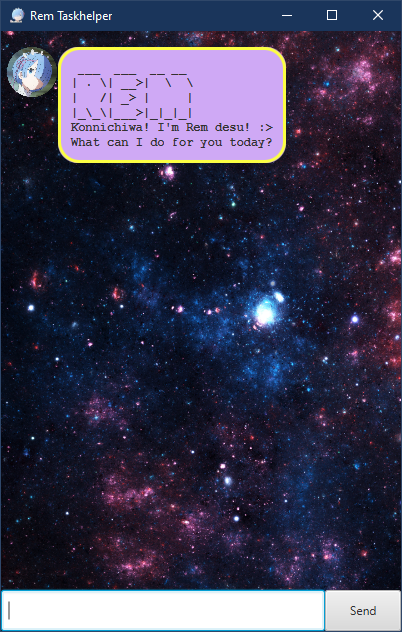
java -jar duke.jarand pressing Enter. You can also double-click the file to start the app. (An illustration of this is shown below) - The GUI should appear in a few seconds. You will then arrive at the landing page.
- Start typing in your commands into the text bar and press Enter or click the send button to interact with Rem Taskhelper.
Summary of Commands
| Command | Description |
|---|---|
| list | Displays task checklist. |
| todo | Adds a todo task to the task checklist. |
| deadline | Adds a deadline task to the task checklist. |
| event | Adds an event task to the task checklist. |
| mark | Marks given task numbers/all tasks as complete. |
| unmark | Marks given task numbers/all tasks as incomplete. |
| delete | Deletes given task numbers/all tasks. |
| find | Displays tasks in task checklist matching input. |
| clear | Clears the window outputs. |
| bye | Saves tasks and exits Rem Taskhelper. |
Usage
list - Displays your checklist
Description: Retrieves the list of tasks from your local storage and displays your list of tasks.
Usage: list
Example: list
todo - Adds a todo task
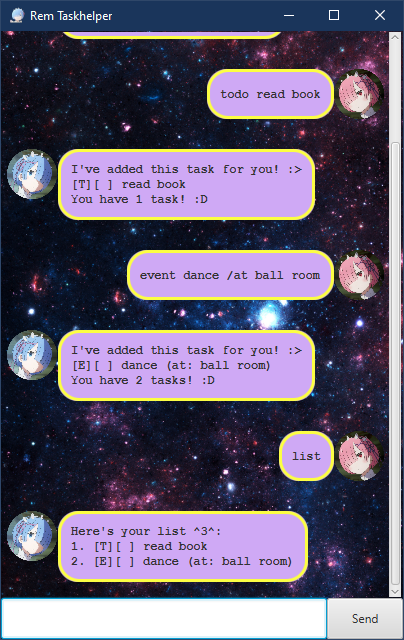
Description: Creates a todo task and adds it into your checklist.
Usage: todo [task description]
Example: todo read book
deadline - Adds a deadline task
Description: Creates a deadline task and adds it into your checklist. Supports date formatting when
you enter date in the format yyyy-mm-dd.
Usage: deadline [task description] /by [date]
Example:
deadline iP submission /by 2022-9-16deadline math assignment /by tomorrow
event - Adds an event task
Description: Creates an event task and adds it into your checklist. Supports date formatting when
you enter date in the format yyyy-mm-dd.
Usage: event [task description] /at [date or location]
Example:
event mid-autumn festival /at homeevent career fair /at 2022-9-14
mark - Marks a task as complete
Description: Marks the task corresponding to the given task number in the checklist as complete.
Supports multiple task marking when you enter multiple task numbers separated by a space.
Also supports marking all the tasks complete at once.
Usage:
- mark [task numbers]
- mark all
Example:
mark 1 2 5mark all
unmark - Marks a task as incomplete
Description: Marks the task corresponding to the given task number in the checklist as incomplete.
Supports multiple task marking when you enter multiple task numbers separated by a space.
Also supports marking all the tasks incomplete at once.
Usage:
- unmark [task numbers]
- unmark all
Example:
unmark 2 7 1unmark all
delete - Deletes a task
Description: Deletes the task corresponding to the given task number in the checklist.
Supports multiple task deleting when you enter multiple task numbers separated by a space.
Also supports deleting all the tasks at once. This action is IRREVERSIBLE.
Usage:
- delete [task numbers]
- delete all
Example:
delete 4 1 7delete all
find - Finds your tasks
Description: Searches for your tasks and displays all tasks that contain the task description.
Usage: find [task description]
Example: find book
clear - Clears the window outputs
Description: Cleans the window of all Dialogue outputs between you and Rem Taskhelper.
Usage: clear
Example: clear
bye - Saves and Exits Rem
Description: Saves and exits the Rem Taskhelper.
Please ensure all your changes are finalised before using this command, as your updated checklist
would OVERWRITE your previous checklist.
Usage: bye
Example: bye
Command Prompt
Command Prompt Illustration
Examples of Usage
Landing Page
Adding Tasks
Marking Tasks